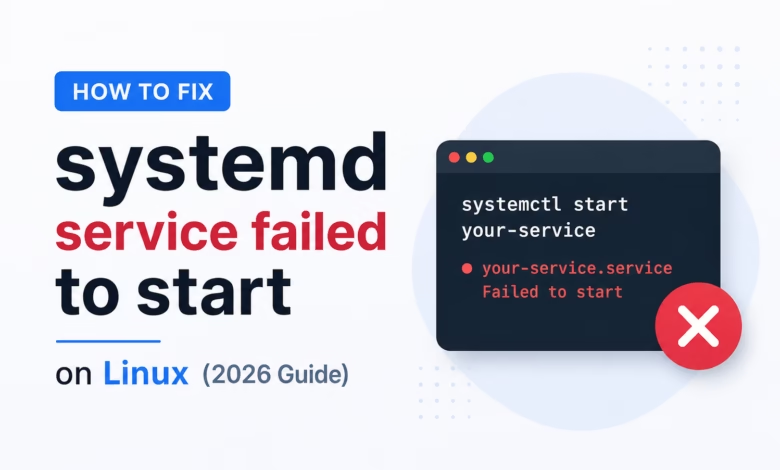
Encountering the dreaded “systemd service failed to start” error can halt your deployment, server maintenance, or application uptime instantly. Whether you are managing an Ubuntu or Debian environment, this error usually indicates a misconfiguration, a missing dependency, permission denials, or invalid paths inside your service unit file.
In this comprehensive guide, we’ll break down why this error happens, how to diagnose it using system logs, and step-by-step solutions to get your services back online.
What the “systemd service failed to start” Error Actually Means
When systemd tries to start a service, it reads a configuration unit file (typically located in /etc/systemd/system/ or /lib/systemd/system/). If the underlying executable fails to launch, exits with a non-zero status, or encounters permission issues (such as Failed to execute command: Permission denied), systemd aborts the startup and flags the service as failed.
Where to Find the Relevant Logs
Before changing any configurations, you need to know why the service crashed. Run the following command without pagination to inspect the service status:
systemctl status <service> --no-pagerFor deeper, boot-specific diagnostic logs, use the journalctl utility:
sudo journalctl -u <service> -n 50 --no-pagerReproduce and Capture Diagnostics
To pinpoint the exact root cause, use these diagnostic commands depending on your stack:
1. General Systemd Status
Check the exact exit code and recent log entries:
systemctl status <service> --no-pager2. Containerized Services
If your systemd service manages a Docker container that failed to start:
docker ps -a && docker logs <container>3. Remote Service & SSH Debugging
If the failure relates to remote connections or SSH daemon configurations:
ssh -vvv user@server # reproduce and capture verbose diagnostics4. Web Server Syntax Checks
If your failed service is Nginx or Apache, run their built-in syntax validators before restarting systemd:
sudo nginx -t && sudo systemctl status nginxsudo apache2ctl configtest && sudo systemctl status apache2Fix “systemd service failed to start” Step by Step
Follow these sequential steps to resolve the issue on Ubuntu and Debian systems:
Step 1: Reload the Systemd Daemon
If you recently edited a service file, systemd won’t recognize the changes until you reload the daemon manager:
sudo systemctl daemon-reloadStep 2: Reset the Failed State
Systemd locks a failed service in a failed state until explicitly cleared. Reset the state before attempting a restart:
sudo systemctl reset-failed <service>Step 3: Fix Permission and Executable Path Issues
A common culprit behind the Permission denied variant is an incorrect ExecStart path or lack of executable permissions on the target script.
- Open your service file:Bash
sudo nano /etc/systemd/system/your-service.service - Ensure absolute paths are used for binaries (e.g.,
/usr/bin/python3instead ofpython3). - Verify file permissions on your application script:Bash
sudo chmod +x /path/to/your/script.sh
Step 4: Restart and Enable the Service
Once configurations and permissions are corrected, start the service and enable it to run on boot:
sudo systemctl start <service>
sudo systemctl enable <service>
Step 5: Verify the Fix Worked
Confirm that the service is running successfully and active:
sudo systemctl status <service> --no-pagerCommon Variations & Frequently Asked Questions
Why is systemd service failed to start?
This typically happens due to syntax errors in the unit file, missing environment variables, incorrect file permissions, conflicting ports, or dependencies (like a database or network interface) failing to load first.
How to configure systemd service failed to start handling?
You can configure automatic restarts inside your service unit file under the [Service] block to handle unexpected crashes gracefully:
Ini, TOML
[Service]
Restart=always
RestartSec=5s
Summary Checklist for Ubuntu & Debian
- Run
sudo systemctl daemon-reloadafter modifying any service files. - Clear previous errors using
sudo systemctl reset-failed. - Check logs via
journalctl -u <service>to catch specific error messages. - Verify absolute paths and executable permissions (
chmod +x).